Guides
backdrop-filter Performance: How to Keep Liquid Glass Smooth on Every Device
What actually makes glass UI slow, how to measure it in Chrome DevTools, and twelve practical rules for fast backdrop-filter and SVG refraction on phones, laptops and low-end devices.
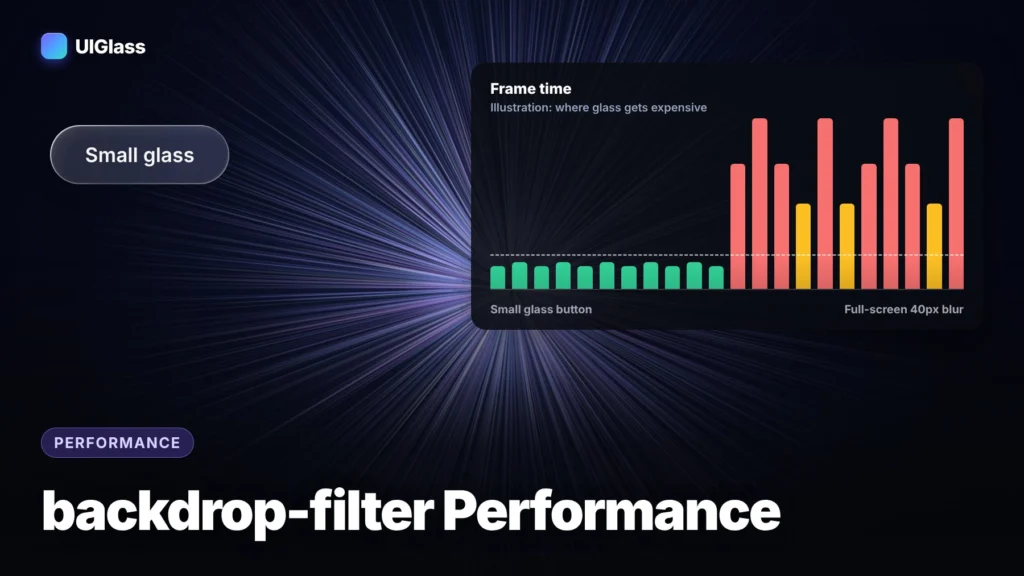
In short: backdrop-filter is fast on small elements and expensive on large ones. The cost grows with the glass area, the blur radius, how often the content behind it changes, and how many glass layers are stacked. Keep glass on controls, use moderate blur and never animate the filter itself.
“Is glass UI bad for performance?” The honest answer: it depends almost entirely on how you use it. A glass button costs next to nothing. A full-screen glass panel with a 40px blur over a video can drop frames on a mid-range phone. This guide explains where the cost comes from, how to measure it, and how to keep liquid glass smooth.
We don’t publish frames-per-second figures here. They vary so much between GPUs, browsers and screen sizes that a single number would mislead. Instead you get the mechanics and a way to measure your own pages.
Where the cost comes from
To draw an element with backdrop-filter, the browser has to:
- render everything behind the element into a separate buffer,
- run the filter (blur, saturation, an SVG displacement map) over that buffer,
- composite the result under the element’s own content,
- do it again whenever anything behind the element changes: scrolling, animation, video, a hover effect elsewhere.
So the cost grows with four things:
| Factor | Why it matters |
|---|---|
| Area | More pixels to read back and filter. A full-width header costs many times more than a button |
| Blur radius | Larger radii sample more neighbouring pixels per output pixel |
| How often the backdrop changes | Static background: filtered once. Scrolling content or video underneath: filtered every frame |
| Stacking | Glass over glass filters already-filtered content, and each layer adds a pass |
SVG refraction (backdrop-filter: url(#lens), explained in the liquid glass CSS guide) adds a displacement pass on top. With chromatic dispersion that becomes three passes, one per colour channel. On a button that’s negligible. On a large panel it adds up.
How to measure it in Chrome DevTools
- Rendering panel (⋮ → More tools → Rendering):
– Paint flashing shows what repaints while you scroll. Glass over scrolling content flashes constantly; that’s expected, but it shows you where the cost is. – Frame Rendering Stats shows a live frame meter.
- Performance panel: record a scroll or interaction with CPU throttling 4×. Look for long “Paint” and “Composite Layers” tasks and dropped frames in the Frames track.
- Layers panel: check how many layers your glass creates and how large they are.
- A real phone: connect an Android device and use remote debugging (
chrome://inspect). Emulation on a desktop GPU hides most of the problem.
Then switch the glass off (backdrop-filter: none) and record the same interaction. The difference is the true cost of your glass.
12 rules for fast liquid glass
Size and placement
- Keep glass on controls. Buttons, pills, navbars, small cards. Apple uses Liquid Glass for the control layer, not for content, and the same rule helps performance.
- Avoid full-screen glass panels on mobile. If you need a full-width bar, keep it short.
- Don’t stack glass on glass. Put content inside a glass panel on a solid or plain background.
Filter settings
- Use moderate blur. 2–16px covers almost every design. Liquid glass with refraction needs only 0–4px.
- Use refraction where it shows. A lens on a 48px icon button is cheap and visible. On a 900px panel it’s expensive, and few people notice it.
- Make dispersion optional. Chromatic aberration triples the displacement work. Use it on hero elements, not on every list item.
Motion
- Never animate
backdrop-filteritself. Changing the blur radius forces a full re-filter on every frame. Animatetransformandopacityinstead. - Be careful with glass over video and animated backgrounds. The backdrop changes every frame, so the filter runs every frame. Consider a static poster image under the glass, or a lighter blur.
- Respect
prefers-reduced-motion, which also reduces work for users on low-power settings.
Loading and code
- One SVG filter per shape, not per element. Ten glass buttons can share one
#btn-lensfilter. - Don’t use
will-change: backdrop-filter. It doesn’t make filtering cheaper and can create unnecessary layers. Usewill-change: transformonly on elements that actually animate. - Offer a solid fallback (see the accessible glass UI guide).
prefers-reduced-transparencyusers get a solid surface, and on very low-end devices you can choose solid surfaces yourself, for example under@media (update: slow)for e-ink displays or when your own heuristics detect a weak device.
Does glass hurt Core Web Vitals?
- LCP (Largest Contentful Paint): usually not affected. The CSS and a data-URI SVG filter are a few kilobytes and don’t block rendering. A large glass element can be the LCP element, but filtering doesn’t delay the first paint much.
- CLS (Cumulative Layout Shift): not affected. Glass doesn’t change layout.
- INP (Interaction to Next Paint): this is where large glass areas can hurt. If a click triggers re-rendering of big glass regions (for example, opening a full-screen glass menu over a moving background), the next frame can be late. Small glass components rarely matter.
Battery
Filtering a constantly changing backdrop keeps the GPU busy, which costs some battery, most noticeably with large glass over video or animation. Static backgrounds and small glass elements cost very little. Apple has tuned its native implementation to its own hardware. On the web the responsibility is yours, and the rules above are how you meet it.
A quick budget that works
| Element | Glass? | Blur | Refraction |
|---|---|---|---|
| Buttons, icon buttons, chips | Yes | 6–12px fallback, 1–3px with lens | Yes |
| Navbar / tab bar | Yes | 10–14px | Yes, gentle |
| Feature or hero card (1–3 per page) | Yes | 12–16px | Gentle |
| Cards in long grids | Prefer solid | — | No |
| Full-screen overlays and menus | Prefer solid or very light glass | ≤ 8px | No |
| Over video | Small controls only | 6–10px | Optional |
The UIGlass builder shows a performance cost indicator for each component as you design it.
Frequently asked questions
Is backdrop-filter bad for performance?
Not on its own. The cost scales with the area, the blur radius and how often the content behind it changes. Small glass controls are cheap. Large, heavily blurred panels over moving content are expensive, especially on phones.
Is SVG refraction slower than plain blur?
It adds a displacement pass, or three with chromatic dispersion. On small elements the difference is negligible. On large panels, use a gentler lens or skip it.
How do I make backdrop-filter smoother on mobile?
Reduce the glass area, lower the blur, avoid glass over video or animated backgrounds, don’t animate the filter, and test on a real mid-range Android phone.
Does liquid glass affect SEO?
Not directly. It doesn’t change loading metrics much, and layout stability isn’t affected. Very large glass areas can worsen Interaction to Next Paint, which is part of Core Web Vitals, so keep glass on controls.
Should I use will-change for glass elements?
Only will-change: transform on elements that actually animate. will-change: backdrop-filter doesn’t speed up filtering.
Why is backdrop-filter slow?
The browser must re-render and filter everything behind the element whenever that content changes. Large areas, big blur radii, moving backgrounds and stacked glass layers multiply the work.
Does backdrop-filter work with GPU acceleration?
Browsers render backdrop filters on the GPU where they can, but the work still scales with area and blur radius, so large filters can be slow on mobile GPUs.
How do I test glass performance in Chrome?
Open DevTools, turn on Paint flashing and Frame Rendering Stats in the Rendering panel, and record a scroll in the Performance panel with 4x CPU throttling. Then compare with the glass turned off.
Is glassmorphism bad for mobile?
Not when it’s used on small elements. Full-screen glass with heavy blur over moving content is what drops frames on mid-range phones.